Bose SoundTouch Toolkit
Documentation for controlling and preserving Bose SoundTouch devices
Migration Guide: From Bose Cloud to AfterTouch
This guide walks through the complete process of migrating your SoundTouch speakers from Bose’s cloud services to AfterTouch, the local replacement provided by soundtouch-service. By the end, your speakers will work fully independently of Bose’s servers.
For a shorter overview, see the Survival Guide. For safety considerations and rollback options, see the Migration & Safety Guide.
What you need
- A machine that is always on (Raspberry Pi, NAS, home server, or similar) to run the service
- A USB drive (FAT-formatted) to enable SSH on each speaker
- Your speakers must be on the same network as the service host
- About 15–30 minutes per speaker
Step 1: Install and start the service
Choose the option that fits your setup.
Binary (go install)
go install github.com/gesellix/bose-soundtouch/cmd/soundtouch-service@latest
soundtouch-service
The service starts on port 8000. Open http://localhost:8000 in your browser.
Docker Compose (recommended for home servers and VMs)
The repository ships a docker-compose.yml ready for this use case. Clone or download it, copy the example config, then edit .env before starting:
cp .env.example .env
# Edit .env:
#   SOUNDTOUCH_HOSTNAME=192.168.1.100   ← your server's address
#   SOUNDTOUCH_VERSION=v0.70.0          ← pin to a release tag instead of 'latest'
docker compose up -d
SOUNDTOUCH_HOSTNAME is the address your speakers will use to reach the service — use a hostname or IP reachable from the speaker, not localhost.
On Linux (Debian, Proxmox VE, Raspberry Pi OS, etc.) you can enable host networking for automatic speaker discovery. Uncomment the network_mode: host line in docker-compose.yml and remove the ports: section (they conflict with host networking). Without host networking, add your speakers by IP address in Step 4 instead.
For local overrides (e.g. switching to build: . during development), create a docker-compose.override.yml — Docker Compose picks it up automatically and it is not tracked in version control.
Note on
docker-compose.ci.yml: this file contains mock services used only for automated integration tests. It is not needed for your own deployment.
Docker run (Linux — with host networking for device discovery)
docker run -d \
  --name soundtouch-service \
  --network host \
  -v $(pwd)/data:/app/data \
  ghcr.io/gesellix/bose-soundtouch:latest
Docker run (macOS / Windows — manual device IP required)
docker run -d \
  --name soundtouch-service \
  -p 8000:8000 -p 8443:8443 \
  -v $(pwd)/data:/app/data \
  --env SERVER_URL=http://soundtouch.local:8000 \
  --env HTTPS_SERVER_URL=https://soundtouch.local:8443 \
  ghcr.io/gesellix/bose-soundtouch:latest
On macOS/Windows, device discovery via mDNS won’t work inside the container — you’ll add devices by IP address in Step 4.
See Raspberry Pi Setup and the SoundTouch Service Guide for more deployment options.
Step 2: Configure the service URL
Open http://<server>:8000 and go to the Settings tab.
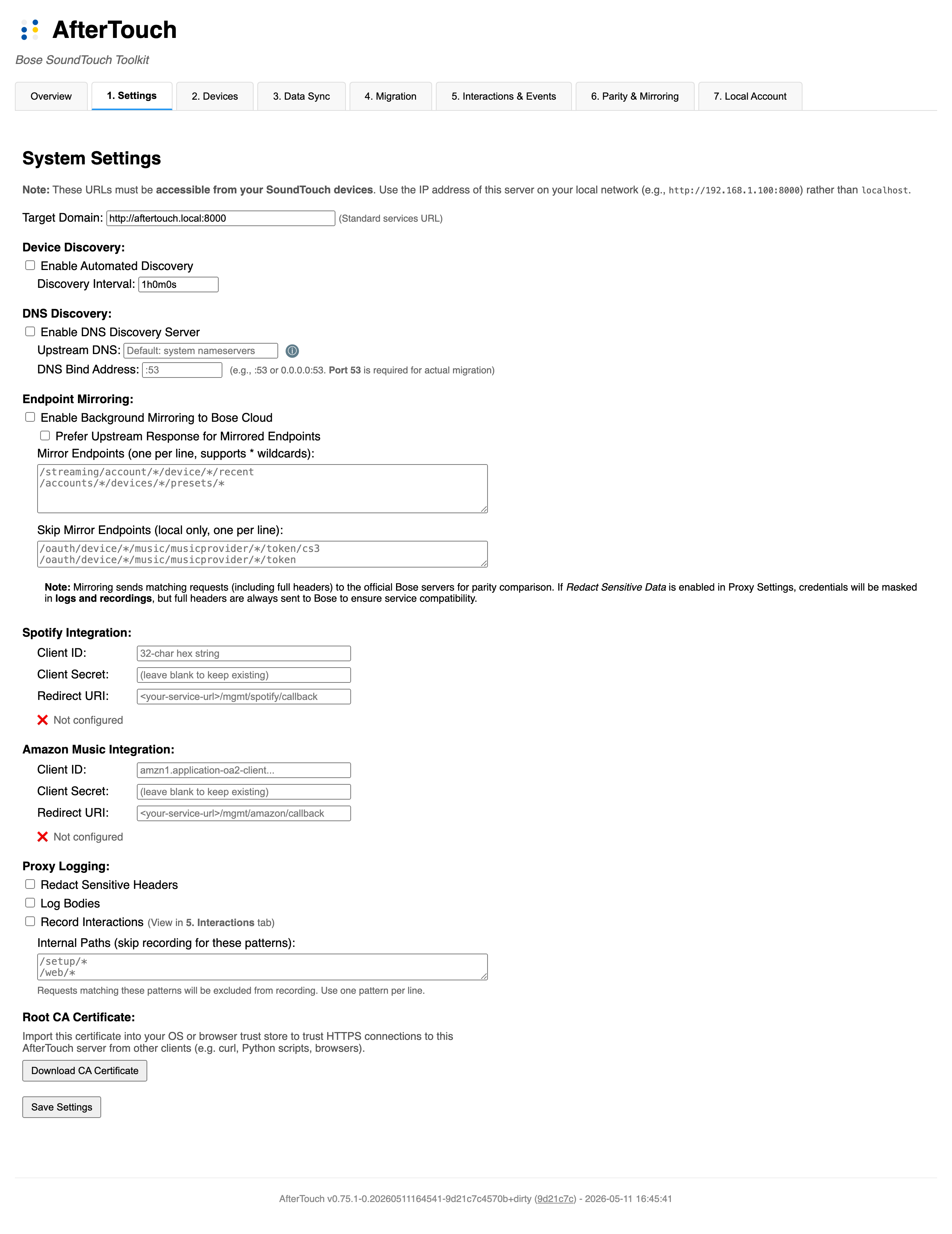
Set the Target Domain to the address your speakers can reach — for example https://soundtouch.fritz.box or http://192.168.1.100:8000. This must be the host’s address on your local network, not localhost.
If you plan to use DNS/DHCP redirect, enable the DNS Discovery Server and set the DNS Bind Address to :53. The upstream DNS should be your router’s IP, not the service’s own address.
Tip: If you change settings and they don’t seem to take effect, check
data/settings.json— settings saved in the UI take precedence over environment variables.
Step 3: Enable shell access on each speaker
The wizard supports two transports for talking to the speaker. Pick whichever your device exposes:
SSH (recommended — required for XML migration, DNS interception, and CA install)
The XML migration writes updated configuration to the speaker’s filesystem, which requires SSH access. Enable it once per device:
- Format a USB drive as FAT (FAT32). Some speakers require the bootable flag to be set on the partition — see SoundCork issue #172 for details.
- Create an empty file named
remote_services(no extension) in the root of the drive. - Insert the drive into the speaker’s USB port while it is powered on.
- Power-cycle the speaker (unplug the power cable, wait 10 seconds, reconnect).
- After boot, root SSH is available with no password:
ssh -oHostKeyAlgorithms=+ssh-rsa root@<SPEAKER-IP>
You only need to do this once per speaker. SSH can remain enabled for future maintenance or be disabled after migration — your choice.
Telnet:17000 (fallback when SSH isn’t possible)
If the USB-stick unlock doesn’t work on your speaker (some firmware revisions refuse it — notably SA-5, ST520, and recent ST Portables), the wizard falls back to the speaker’s built-in diagnostic shell on TCP port 17000. No setup required — most SoundTouch firmware exposes it automatically. The wizard detects which transports are available and picks the right one; you don’t have to choose manually.
Telnet-only migrations are limited to HTTP (no CA install possible without SSH). The wizard surfaces this clearly when it applies.
Step 4: Add and sync your speaker
Discover
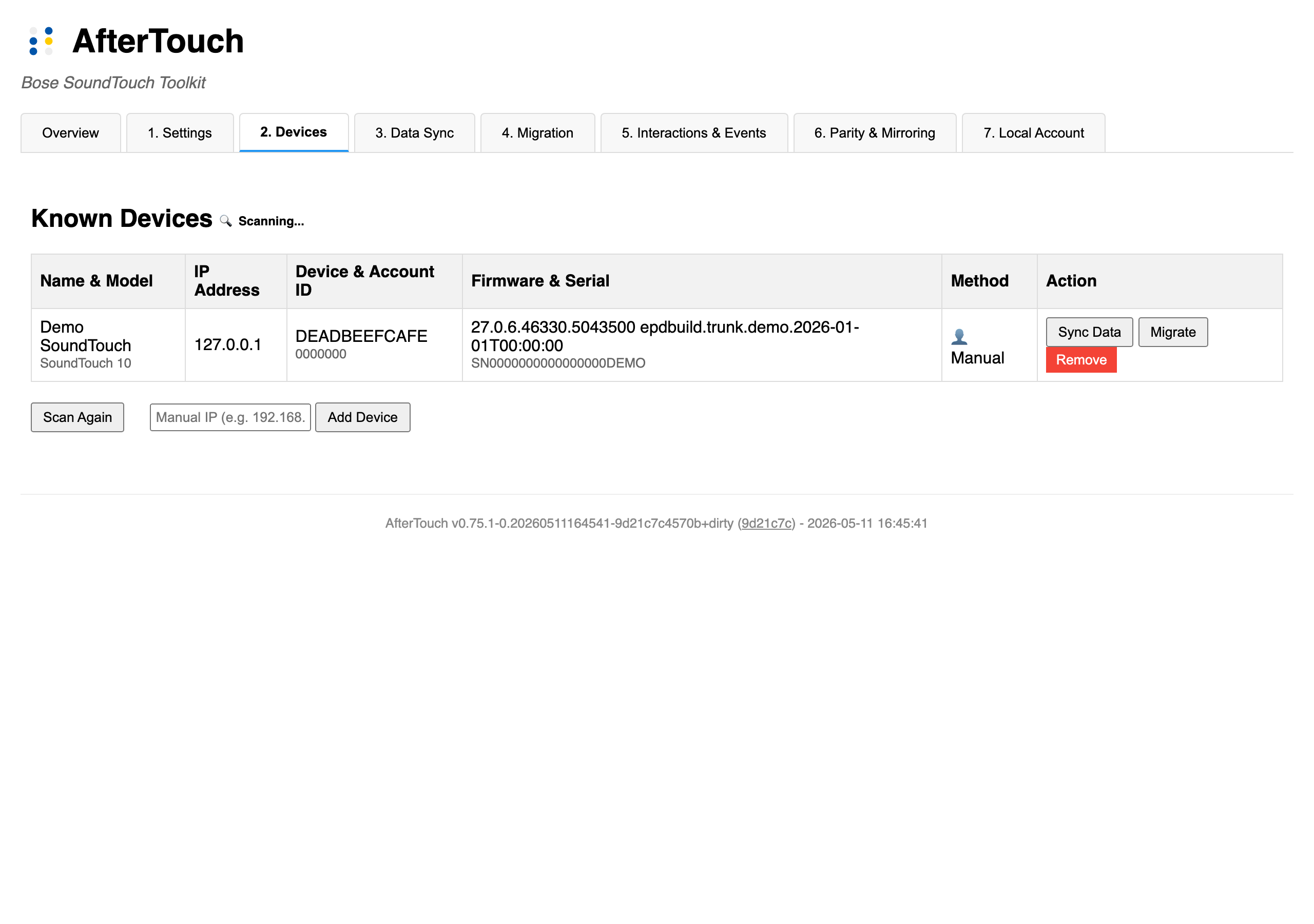
The service scans for SoundTouch devices automatically every few minutes. Check the Devices tab in the web UI. If your speaker doesn’t appear, click Scan Again to trigger an immediate scan, or enter the IP address manually and click Add Device.
Sync
Once the speaker appears, click Sync Data. This connects to the speaker and pulls its current presets, recently played items, and configured sources into the local service’s datastore. It also creates an off-device backup of the speaker’s configuration.
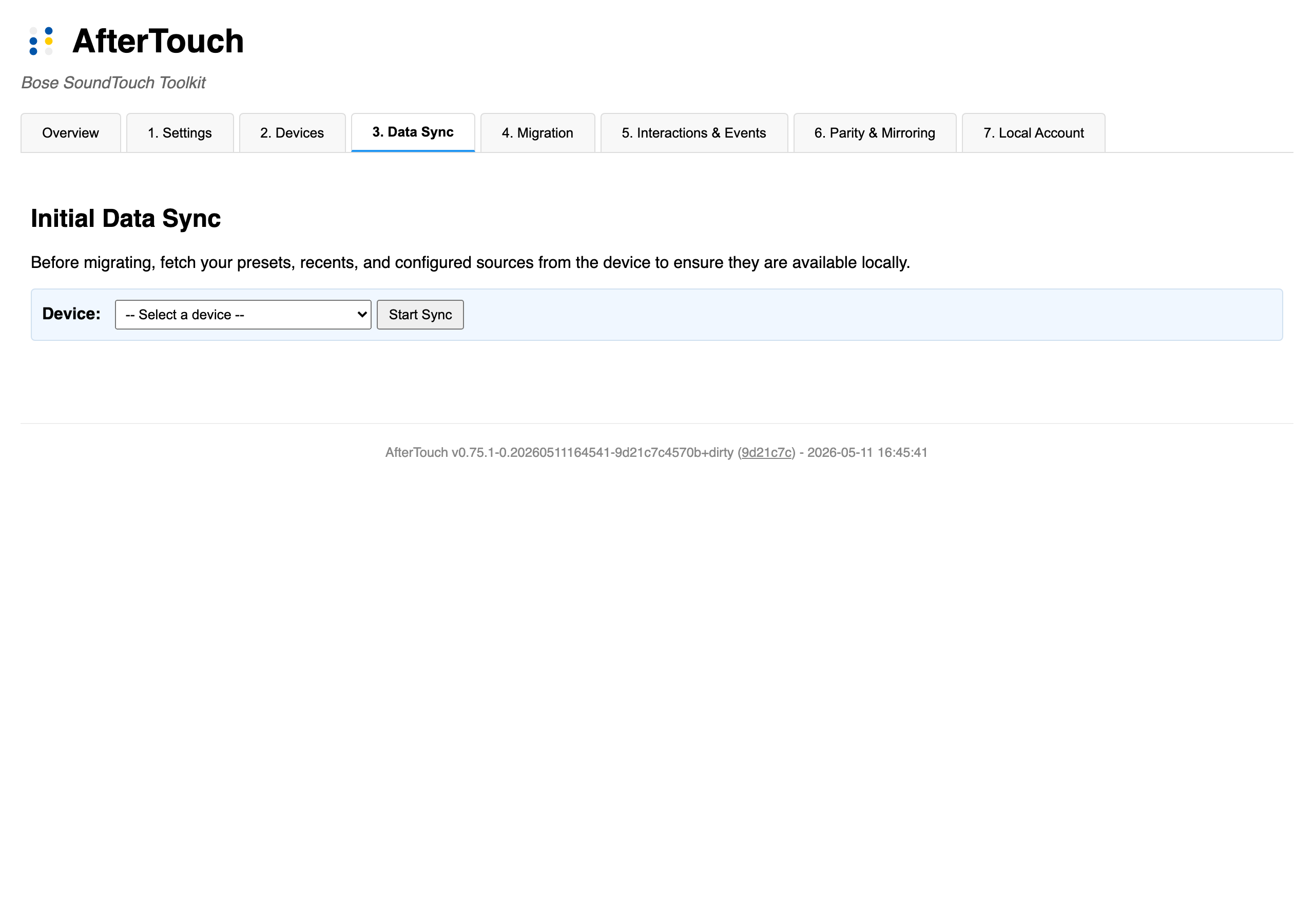
If the Bose cloud is still running, Sync also fetches your account data from Bose’s servers. This is your preservation step — do it before the cloud shuts down.
Step 5: Migrate
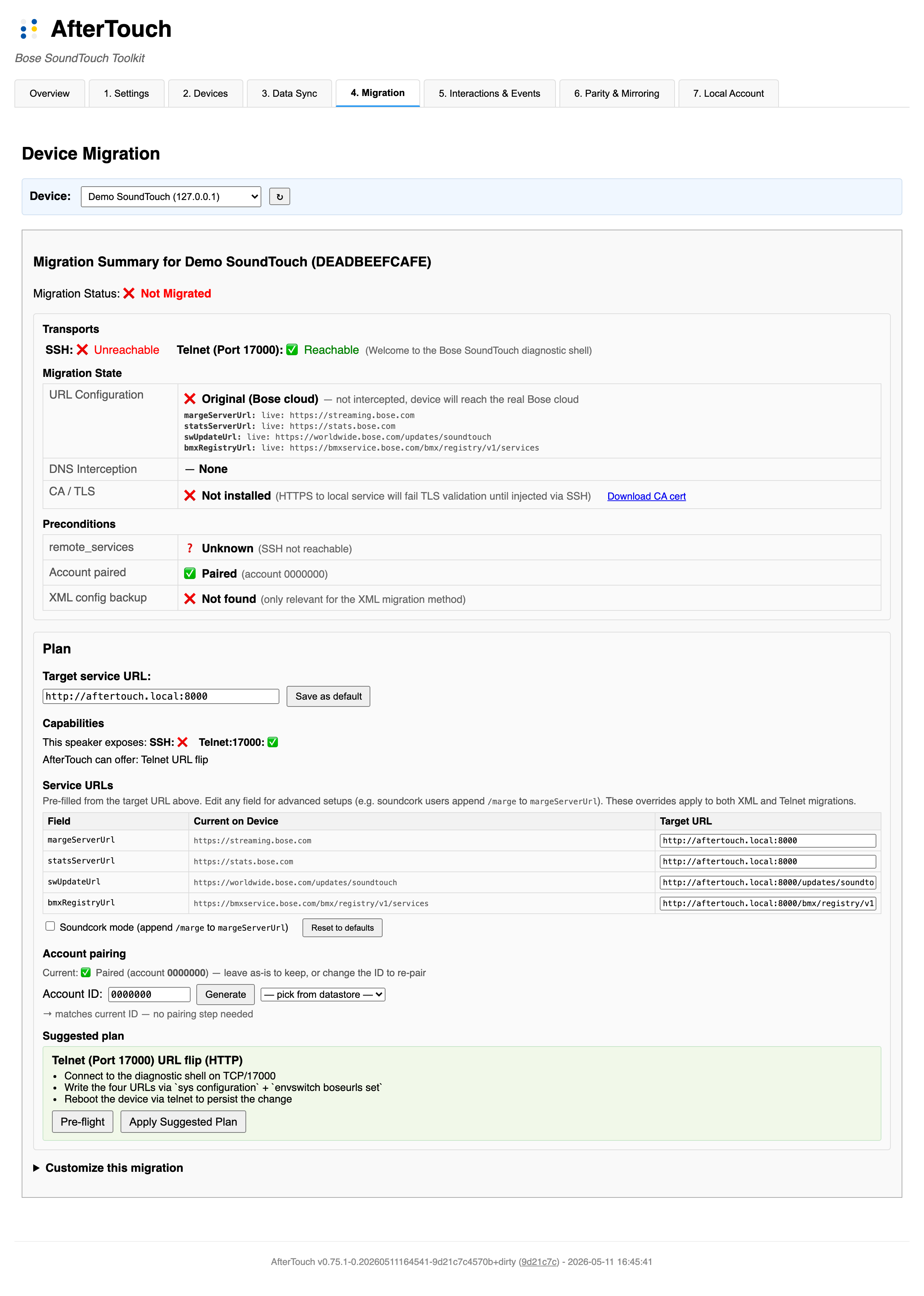
Click Migrate next to a device on the Devices tab to open the Migration tab. The tab opens with a Migration Summary that shows where your speaker currently stands, then offers a one-click suggested plan and a fully customizable form underneath.
What you see at the top — the state card
Three rows tell you the speaker’s current state at a glance:
- Transports — whether SSH and Telnet:17000 are reachable. The wizard’s choices are driven by these.
- Migration State — three orthogonal axes:
- URL Configuration — original Bose URLs or AfterTouch URLs (with a special “intercepted via DNS” verdict when the resolv.conf hook is doing the redirect).
- DNS Interception — none, or
/etc/resolv.confhook active. - CA / TLS — local root CA installed on the device, with
Trust CA NowandDownload CA certactions inline.
- Preconditions —
remote_servicespersistence, account pairing state, and XML config backup presence.
The Plan card — the happy path
Below the state card is the Plan card. For most users this is the only thing you’ll touch:
- Target service URL — pre-filled from your Settings. Edit inline and click Save as default to update Settings without bouncing tabs.
- Capabilities — what transports the speaker exposes and what AfterTouch can offer given those.
- Service URLs — four URL inputs (margeServerUrl, statsServerUrl, swUpdateUrl, bmxRegistryUrl) pre-filled with canonical defaults. Most users leave them as-is; soundcork users tick the Soundcork mode checkbox to append
/margetomargeServerUrl. URL validation runs on every keystroke. - Account pairing — pre-filled with the speaker’s current account ID. Leave it to keep the existing pairing, change it to re-pair, or click Generate to assign a new 7-digit ID on a factory-reset device.
- Suggested plan — one big green button: Apply Suggested Plan. The wizard picks the most conservative recipe for your speaker (XML over SSH with HTTP when SSH works; telnet URL flip with HTTP when only telnet works) and runs it.
What happens when you click Apply
The wizard switches to a visible Pre-flight checks panel and runs every applicable verification before touching the speaker:
- Backend summary re-check — confirms transports, hostname resolution, and that the URLs you plan to write match what the backend would produce.
- HTTPS connection from device (SSH-capable speakers) — uploads a temporary CA and runs
curlfrom the speaker to your service. - Reachability check (passive observer) (already-migrated speakers) — nudges
:8090/swUpdateCheckon the device and watches for any request from the speaker to land on the service. Used when the speaker is already migrated and the service is the natural target of its outbounds. - “Round-trip validation runs after Apply + reboot” (not-yet-migrated speakers) — surfaced as a skip row with a rationale. The speaker’s swUpdate daemon caches its URL at boot, so there is no useful no-reboot round-trip check pre-migration; the canonical telnet flow is Apply → reboot → re-run pre-flight on the migrated speaker.
- DNS redirection from device — when DNS interception is part of the plan.
On all-green, the wizard auto-proceeds. On any failure, it pauses with Proceed Anyway / Cancel buttons so you can override on a known-false-positive (slow DNS, etc.) or fix the underlying issue and retry.
Customize this migration — for mix-and-match
Expand the ▸ Customize this migration section to pick any combination of three independent axes:
- URL flip transport — XML over SSH / Telnet (Port 17000) / Skip
- DNS interception — None /
/etc/resolv.confhook - Local CA install — checkbox (SSH-only)
Each option carries a per-axis availability hint (e.g. (SSH unreachable), (already trusted)) so you see why an option is disabled before you pick. Apply Custom Plan runs the chosen combination as a sequence; the same pre-flight panel gates the execution.
Note: DNS interception bundles the CA install on the backend, so a standalone CA-install step is skipped automatically when DNS is part of the plan. The wizard handles this for you.
Step 6: Reboot and verify
After a successful Apply the wizard auto-expands the Customize section and highlights the Reboot Speaker button. Click it (or power-cycle the speaker manually) to apply all configuration changes. The reboot transport is picked automatically from your URL flip choice — telnet reboot for SSH-less speakers, SSH reboot otherwise.
After reboot:
- The speaker should appear as migrated in the Devices tab
- The state card on the Migration tab should now show ✅ for URL Configuration (or “intercepted via DNS” if you used the resolv.conf hook)
- Presets should load and play (served from the local service)
- TuneIn browsing should work
- Recently played items should appear
If something doesn’t work, check the Interactions tab in the web UI for failed requests, and the Troubleshooting section in the SoundTouch Service Guide.
Repeat for each speaker
Each speaker is migrated independently. You can run multiple migrations in parallel, but migrating one at a time makes it easier to diagnose issues.
Rollback
If you need to undo a migration:
- From the web UI: Use the Revert to Defaults action on the device — this restores the
.originalbackup files created on the speaker during the XML migration. - Telnet-only migrations: the wizard writes both the runtime configuration layer (
sys configuration …) and the persistent layer (envswitch boseurls set …) so the migration survives reboot. If you want to revert quickly, the cleanest path is to re-run the wizard with the original Bose URLs in the URL editor. - Via SSH: The original XML config is backed up on the speaker with a
.originalsuffix. Restore it manually if the UI is unreachable. - Factory reset: As a last resort, perform a factory reset (see Device Initial Setup for button sequences). This wipes all configuration and returns the speaker to out-of-box state.
Post-migration
Once all speakers are migrated, the data/ directory is the source of truth for your presets, recents, and device state. Back it up periodically. The web UI at http://<server>:8000 is your management interface from this point on.
For the Bose cloud backup you created in Step 4, keep the .tar.gz archive in case you need to restore credentials or presets later.